Time tracking
Log billable hours natively, accept suggestions from your calendar, or keep your existing Harvest / Clockify setup and let the assistant read it.
How time tracking works in Really Focus
Time tracking is a first-class feature, not an afterthought. The assistant uses your logged time to estimate revenue, catch what looks billable but isn't logged, and ground its briefings in what you actually did versus what you planned.
There are three ways to put time in:
- Log it natively — directly in the app, on Telegram, or by talking to the assistant.
- Approve it from your calendar — the assistant proposes entries based on meetings; you accept or dismiss.
- Keep using Harvest or Clockify — connect them and the assistant gains literacy in whichever you already use.
The Time tab
Open Time from the side navigation. The page is the week at a glance:
- Weekly bar chart — one bar per day, billable and non-billable split by colour.
- Total logged and billable rate — running totals for the week.
- Suggested from your calendar — entries the assistant has drafted based on your meetings, waiting for you to accept or dismiss.
- Entries table — everything logged this week, with duration, account, scope, and a billable badge. Hover to Edit.
- Revenue estimate — a per-account breakdown using your default rates, plus utilisation %.
Log a single entry
-
Click Log Time. The dialog asks for:
- Duration in minutes (e.g.
90). - Date — defaults to today.
- Description — what you worked on.
- Account and Scope (optional) — pick the client and project. Scopes filter to the chosen account.
- Billable — checked by default.
- Duration in minutes (e.g.
Save. The entry shows up in the table and the weekly bar updates immediately.
Your track record (on the dashboard)
The dashboard's Track Record widget consolidates the time-tracking story into a single glance: a 12-week activity heatmap, your completion streaks, what you've logged this month, and what you've earned.
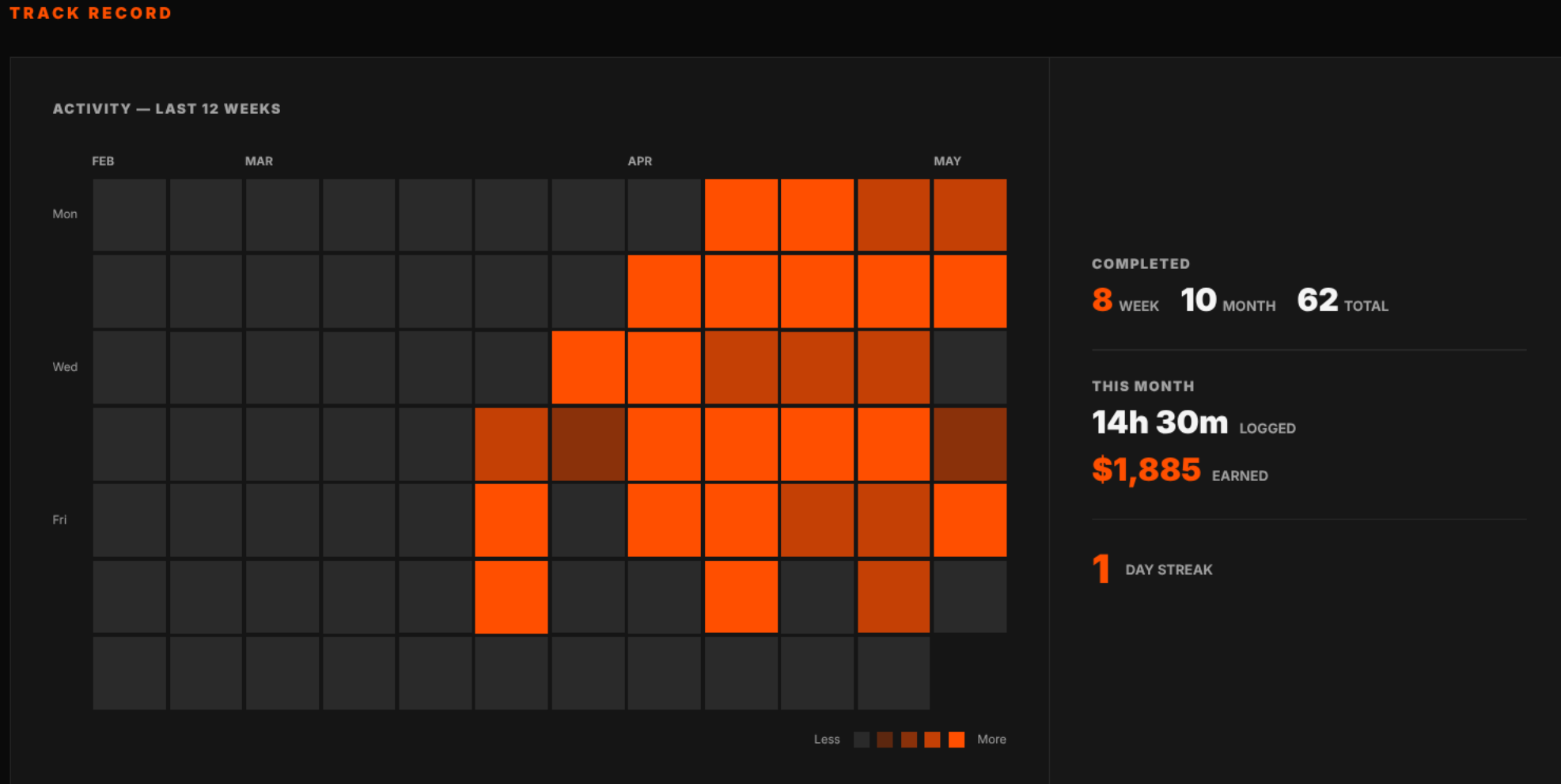
The heatmap is the same idea as a contributions chart — every day you log time or close commitments, the cell gets darker. It exists to make consistency visible. A patchy week is harder to ignore when you can see it; a long streak is harder to break when you can see that too.
The right panel keeps the numbers honest:
- Completed — commitments closed this week, this month, and lifetime.
- This month — total hours logged plus estimated revenue earned at your default account rates.
- Day streak — how many consecutive days you've logged at least something.
Suggested entries from your calendar
Once your calendar is connected (read-only — see Getting started), the assistant scans events and proposes time entries for the ones that look billable: client meetings, internal calls about a specific scope, anything tied to an account it recognises.
Suggestions appear under Suggested from your calendar at the top of the Time tab. Each one shows the proposed account, scope, and duration. You can:
- Approve — accepts the entry as-is and moves it into the table.
- Dismiss — removes the suggestion. The assistant learns and is less likely to suggest similar events.
- Approve All — bulk-accept everything pending, useful for end-of-week sweeps.
Edit before approving if the duration or description needs tweaking.
Time reports
The weekly Time tab is for daily logging. For end-of-month invoicing, client audits, or just understanding where the hours actually went, click View Report in the Time tab sidebar (or visit /time/report directly).
Filters
Reports are filterable along five axes:
- Date range — quick presets (This week, Last week, This month, Last month, Last 30 days, Last 90 days) or a custom From / To picker.
- Account — narrow to a single client. Selecting an account cascades the scope dropdown to that account's scopes only.
- Scope — narrow further to a specific project.
- Billable — All, Billable only, or Non-billable only.
- Include billing — checkbox that toggles the revenue calculations on or off. Useful when you want a clean time report without dollar figures (sharing with a non-billable stakeholder, for example).
Hit Apply to run the report; Clear filters resets to the default (this week, all accounts, billing on).
What you see
Four summary cards at the top:
- Total time — total minutes plus entry count.
- Billable — billable minutes plus utilisation % (billable ÷ total).
- Non-billable — the inverse.
- Est. revenue — total estimated revenue across the range, in the dominant currency.
Below that, the entries table lists every entry that matched the filters, grouped by date with a per-day total. Each row shows duration, description, account, scope, and a billable badge.
If billing is included, a Revenue breakdown table at the bottom rolls everything up by account — minutes, hourly rate, estimated revenue per account, plus a grand total in the footer alongside utilisation %.
Export to PDF
Click Export PDF to download a clean, printable version of the same report. The PDF respects whatever filters are currently applied, includes the same summary, entries table, and revenue breakdown, and stamps the team name, user, and generation timestamp in the footer.
Filename format: timesheet-{from}-to-{to}.pdf. Send it as an invoice attachment, drop it into a client folder, or keep one on file at month-end.
Reports are personal
Each user only sees their own time in reports — there's no team-wide rollup or peer visibility. If your team needs consolidated reporting across people, that's a future feature; today, each user pulls and shares their own.
Common reports worth running
- Monthly invoice prep — Last month + filter to one account + include billing + export PDF. Attach to the invoice.
- Client audit trail — custom range + filter to one account + billable only + export PDF. The defensible record of what was billed for what.
- Where did the week go? — This week, no account filter, billing off. Pure activity view.
- Profitability check — Last 90 days, all accounts, billing on. Sort the revenue breakdown to see which clients are pulling weight and which aren't.
Log time without opening the app
Telegram
The fastest path. Just say what you did:
- "Log 90 minutes against Acme for the strategy call."
- "Two hours on the Globex retainer this morning, write that up."
- "I forgot to log yesterday's session with Sarah — 45 minutes, billable."
The assistant matches the account, picks the right scope if you mention one, and confirms back: "Logged 90 minutes: strategy call (entry #142)."
If you prefer keystrokes, /time 2h Strategy call with Acme does the same thing. Both 1.5h and 90m formats work.
Anywhere you can ask the assistant
The same natural-language hooks work on every channel — "Log 30 minutes admin", "What have I logged this week?", "Mark today's Acme entry as non-billable", "Delete the duplicate entry from Tuesday". The assistant has full create / read / update / delete control over time entries on your behalf.
Time in your briefings
Your time data is part of every briefing's context. In practice that means:
- The morning briefing knows what's logged this week and the billable share, so it can suggest catching up on missing entries.
- The end-of-day briefing flags meetings that happened but weren't logged.
- The weekly review surfaces which clients ate the most (and least) of your time.
- Custom schedules can ask explicit questions like "What's unbilled from this week and how much is on the table?".
Connect Harvest
If you already track time in Harvest, connect it. The assistant gains the ability to read your Harvest entries and projects — and to create new ones in Harvest on request — without you having to migrate.
Connect
-
On the Integrations page, find the Harvest card and click Connect Harvest.
-
Authorise via Harvest's standard OAuth screen. The assistant requests access to time entries and projects.
-
You'll land back on Integrations with the Harvest card showing as connected.
What the assistant can do once Harvest is connected
- Read your Harvest entries. Ask "What did I log in Harvest last week?" or "Have I logged anything for Acme in Harvest this month?" and the assistant queries Harvest directly.
- List your Harvest projects with client and budget info — useful when assigning new work.
- Create entries in Harvest on request. "Log 90 minutes to the Acme retainer in Harvest for today's call" creates the entry there, not in Really Focus.
What does not happen automatically
- No background sync. Connecting Harvest doesn't pull your historical entries into Really Focus's table, and entries you log natively don't auto-push to Harvest. This is deliberate — silent two-way sync is the most reliable way to create duplicates and confused billing.
- No deduplication. If you log an entry both natively and in Harvest, it counts twice. Pick one place per entry.
Connect Clockify
Same shape as Harvest, different auth — Clockify uses an API key instead of OAuth.
Connect
-
Generate a Clockify API key. In Clockify, open Profile Settings → Advanced (or visit app.clockify.me/user/preferences#advanced) and copy the key.
-
Find your Workspace ID. It's in the URL when you have a workspace open in Clockify.
-
On the Really Focus Integrations page, find the Clockify card. Paste the API key and Workspace ID, then save.
What the assistant can do once Clockify is connected
- Read your Clockify entries for any date range — including running timers (Clockify's stopwatch concept).
- List your Clockify projects, including billability and client info.
- Create entries in Clockify on request. Ask the assistant to log time and it lands in Clockify, not Really Focus.
What does not happen automatically
Same as Harvest — no background sync in either direction, no deduplication. Choose one place per entry.
Choosing where to log: a simple rule
Pick one source of truth per workflow and stick with it.
- If Harvest or Clockify is already where invoices come from, keep logging there. Use Really Focus to ask the assistant questions about it ("what's billable from last week?") and to log via the assistant — explicitly say "in Harvest" or "in Clockify" so it doesn't double up.
- If you don't already have a tracker, log natively in Really Focus. The Time tab plus calendar suggestions plus Telegram is usually plenty.
- Don't try to mirror. A native entry and a Harvest entry for the same hour will both count.
Tips
- Set default rates per account. The revenue estimate sidebar only works if Really Focus knows what each account pays per hour.
- Sweep suggestions weekly. Friday afternoon, hit Approve All on calendar suggestions and edit any oddities. Faster than logging meeting-by-meeting.
- Mark non-billable explicitly. The assistant assumes billable unless told otherwise. Internal admin, sales calls without a client, business-development time — flag them off.
- Log on the move. Telegram is the lowest-friction logger. A 10-second voice note can be logged before you've left the meeting.
What's next
- Connect Telegram — the fastest channel for logging on the go.
- Schedules — build a Friday "what's unbilled?" cycle that does the work for you.
- Back to Getting started